
💻Computer Keyboard Keys Names and Functions (With Pictures)
Computer Keyboard Keys Names and Functions (With Pictures)
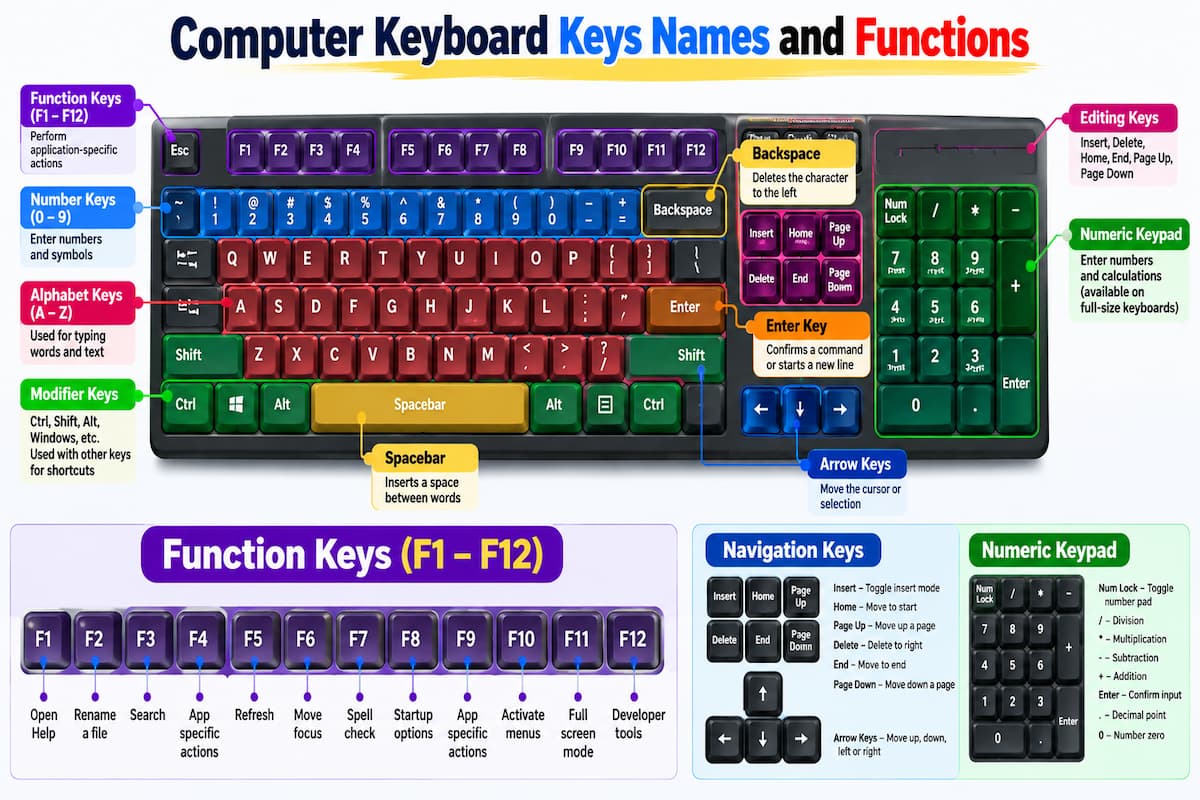
A computer keyboard is one of the most important input devices used to communicate with a computer. 💻 It allows you to type letters, numbers, symbols, and commands, control applications, navigate documents, and perform everyday tasks more efficiently.
But have you ever wondered what all the buttons on a keyboard are called and what each key actually does?
From the familiar alphabet keys (A–Z) to special keys such as Enter, Shift, Ctrl, Esc, and Backspace, every key has a purpose. Some keys help you type, while others control applications, move the cursor, or perform shortcuts.
In this complete guide, you will learn computer keyboard keys names and functions, discover the different types of keyboard keys, explore common symbols, and learn useful Windows and Mac shortcuts with simple examples. ⌨️ Explore Keyboard Symbols Name in Hindi (कीबोर्ड चिन्हों के नाम) | Easy Guide for Students & Beginners
📌 Quick Answer: What Are the Names of Computer Keyboard Keys?
Computer keyboard keys include alphabet keys, number keys, function keys, modifier keys, navigation keys, editing keys, special keys, symbol keys, and numeric keypad keys.
Some of the most common keyboard keys are:
Alphabet keys: A–Z
Number keys: 0–9
Function keys: F1–F12
Modifier keys: Ctrl, Shift, Alt, Windows, Command, and Option
Navigation keys: Arrow keys, Home, End, Page Up, and Page Down
Editing keys: Backspace, Delete, and Insert
Special keys: Enter, Spacebar, Tab, Caps Lock, and Esc
Symbol keys: @, #, $, %, &, *, and ?
Numeric keypad keys: 0–9, +, −, *, /, and Enter
The exact arrangement and number of keys depend on the keyboard's layout, language, size, and operating system.
🖼️ Computer Keyboard Keys Names With Pictures
[Insert Image 1: A full-size QWERTY computer keyboard diagram with clearly labeled alphabet keys, number keys, function keys, modifier keys, navigation keys, arrow keys, and numeric keypad.]
A standard full-size computer keyboard is divided into several sections. Understanding these sections makes it easier to identify individual keys and remember their functions.
| Keyboard section | Examples | Main purpose |
|---|---|---|
| Typing section | A–Z, 0–9 | Enter letters and numbers |
| Function row | F1–F12 | Perform application-specific actions |
| Modifier keys | Ctrl, Shift, Alt | Change how other keys work |
| Editing keys | Backspace, Delete | Correct or remove content |
| Navigation keys | Arrows, Home, End | Move through text and documents |
| Special keys | Enter, Tab, Esc | Perform common commands |
| Symbol keys | @, #, %, & | Type punctuation and special characters |
| Numeric keypad | 0–9, +, − | Enter numbers and calculations |
Let's explore each type of keyboard key and its function. 👇
1. 🔤 Alphabet Keys (A–Z)
Alphabet keys are the letter keys used to type words, sentences, names, and other text. A standard English keyboard contains 26 alphabet letters, from A to Z.
Examples include:
A, B, C, D: Used to type letters and words.
E, F, G, H: Used in everyday typing and text entry.
I, J, K, L: Used to write words, names, and sentences.
M, N, O, P: Used for general text input.
Q, R, S, T: Used to form words and commands.
U, V, W, X, Y, Z: Complete the alphabet.
Most English-language keyboards use the QWERTY layout, named after the first six letters on the top alphabet row.
Example: To type the word KEYBOARD, press K, E, Y, B, O, A, R, and D in sequence.
💡 Tip: Hold Shift while pressing a letter to type its uppercase form. You can also use Caps Lock to toggle uppercase typing.
2. 🔢 Number Keys (0–9)
Number keys are used to enter digits for calculations, dates, prices, phone numbers, measurements, and other numerical information.
Most standard keyboards have two possible places to enter numbers:
Top number row: The digits 0–9 above the alphabet keys.
Numeric keypad: A separate number-entry section on many full-size keyboards.
The top number row often shares keys with symbols such as !, @, #, $, %, and &. The symbol produced depends on the keyboard layout and whether Shift is pressed.
Example: To type the number 2026, press 2, 0, 2, and 6.
3. ⚙️ Function Keys (F1–F12)
Function keys are usually located along the top row of a computer keyboard. They are labeled F1 through F12 and provide shortcuts for particular actions.
Their functions can vary depending on the operating system, application, and keyboard model.
| Key | Common function or example |
|---|---|
| F1 | Opens Help in many applications |
| F2 | Renames a selected file in Windows File Explorer |
| F3 | Starts a search in certain applications |
| F4 | Performs application-specific actions; Alt + F4 closes the active Windows application |
| F5 | Refreshes many web pages and applications |
| F6 | Moves focus between interface areas in some applications |
| F7 | Runs spell-check in some applications |
| F8 | Used for certain startup or application-specific functions |
| F9 | Performs application-specific actions |
| F10 | Activates menus in many Windows applications |
| F11 | Often toggles full-screen mode in browsers |
| F12 | Opens developer tools or Save As in certain applications |
💡 Important: These are common examples, not universal rules. Some laptops use the function row for brightness, volume, and other hardware controls. You may need to hold Fn to access the standard F1–F12 function.
4. 🔧 Modifier Keys and Their Functions
Modifier keys change the behavior of another key when pressed together with it. They are essential for shortcuts, special characters, and system commands.
| Key | Full name | Main function |
|---|---|---|
| Ctrl | Control | Works with other keys to perform shortcuts |
| Shift | Shift | Types uppercase letters and alternate symbols |
| Alt | Alternate | Activates menus and keyboard commands on many systems |
| Windows key | Windows | Opens the Start menu and supports Windows shortcuts |
| Command (⌘) | Command | Performs shortcuts on Apple Mac computers |
| Option (⌥) | Option | Provides alternate characters and shortcut functions on Mac |
| Fn | Function | Activates secondary functions on many laptops |
| AltGr | Alternate Graphic | Types additional characters on supported keyboard layouts |
Examples:
Ctrl + C: Copy selected content on Windows.
Ctrl + V: Paste copied content on Windows.
Shift + A: Type the uppercase letter A.
Windows + E: Open File Explorer on Windows.
Command + C: Copy selected content on Mac.
Some keyboards have two Ctrl and two Shift keys so users can comfortably access shortcuts with either hand.
5. ⌨️ Special Keyboard Keys and Their Functions
Special keys help you enter commands, control typing, correct mistakes, and navigate computer applications.
| Key name | Function |
|---|---|
| Enter / Return | Confirms an action or starts a new line |
| Spacebar | Inserts a blank space between words |
| Backspace | Deletes the character immediately to the left of the cursor |
| Delete (Del) | Deletes the character to the right of the cursor or removes selected items |
| Escape (Esc) | Cancels or exits certain actions, menus, and dialogs |
| Tab | Moves focus to the next field or inserts indentation in supported applications |
| Caps Lock | Toggles uppercase typing |
| Num Lock | Controls numeric-keypad mode on supported keyboards |
| Print Screen (PrtSc) | Captures or initiates a screenshot, depending on the system |
| Insert (Ins) | Toggles insert and overwrite modes in applications that support them |
| Menu key | Opens a context menu on keyboards that include it |
| Scroll Lock | Changes scrolling behavior in certain applications |
Enter key
The Enter key confirms commands, submits forms, and starts a new paragraph in many text editors.
Example: After typing a search query into a search box, press Enter to submit it.
Spacebar
The Spacebar is the long key near the bottom of the keyboard. It inserts spaces between words.
Example: Typing Hello World requires a space between Hello and World.
Backspace vs. Delete
These two keys are often confused, but they usually work differently when editing text.
| Key | What it does |
|---|---|
| Backspace | Removes the character to the left of the cursor |
| Delete | Removes the character to the right of the cursor |
Example: If the text is CAT and the cursor is between C and A, Backspace removes C, while Delete removes A.
On some keyboards and applications, Delete can also remove a selected file, object, or block of text.
Shift vs. Caps Lock
Shift temporarily changes the output of a key while held down. Caps Lock toggles uppercase typing on or off for alphabet keys.
For example, use Shift when typing a single capital letter in a sentence. Caps Lock can be more convenient when typing a heading in all capitals.
6. 🧭 Navigation Keys and Arrow Keys
Navigation keys help you move around documents, text fields, webpages, and other computer interfaces.
[Insert Image 2: Close-up educational diagram labeling the Arrow, Home, End, Page Up, Page Down, Insert, and Delete keys.]
| Key | Function |
|---|---|
| Up Arrow (↑) | Moves upward through text or selections |
| Down Arrow (↓) | Moves downward through text or selections |
| Left Arrow (←) | Moves left through text or selections |
| Right Arrow (→) | Moves right through text or selections |
| Home | Moves to the beginning of a line or another defined starting position |
| End | Moves to the end of a line or another defined ending position |
| Page Up | Moves the view or cursor upward by a page or screen-sized amount |
| Page Down | Moves the view or cursor downward by a page or screen-sized amount |
The exact behavior of Home, End, and the arrow keys depends on the application.
Example: When editing a document, use the Left and Right Arrow keys to reposition the cursor without deleting any text.
💡 Useful tip: In many Windows applications, Ctrl + Left Arrow and Ctrl + Right Arrow move the cursor between words instead of moving one character at a time.
7. 🔣 Computer Keyboard Symbols and Their Names
Keyboard symbols are used in writing, mathematics, programming, email addresses, web addresses, and everyday digital communication.
Here are some common keyboard symbols and their English names.
| Symbol | Name |
|---|---|
| ! | Exclamation mark |
| @ | At sign |
| # | Hash sign |
| $ | Dollar sign |
| % | Percent sign |
| ^ | Caret |
| & | Ampersand |
| * | Asterisk |
| ( ) | Parentheses |
| - | Hyphen or minus sign |
| _ | Underscore |
| + | Plus sign |
| = | Equal sign |
| [ ] | Square brackets |
| { } | Curly braces |
| Backslash | |
| / | Forward slash |
| | | Vertical bar or pipe |
| : | Colon |
| ; | Semicolon |
| ' | Apostrophe |
| " " | Quotation marks |
| , | Comma |
| . | Period or full stop |
| ? | Question mark |
| ~ | Tilde |
| ` | Backtick |
The names and positions of some symbols can differ between keyboard layouts. For example, a symbol printed on a key may require Shift or another modifier to type.
📚 Want to learn more about symbol names and their meanings? Read our related guide: Keyboard Symbols Name in Hindi.
8. 🔢 Numeric Keypad Keys and Their Uses
A numeric keypad is the separate number-entry section found on many full-size desktop keyboards. It is especially useful for spreadsheets, accounting, calculations, and data entry.
| Key or symbol | Function |
|---|---|
| 0–9 | Enter numbers |
| + | Addition |
| − | Subtraction |
| * | Multiplication |
| / | Division |
| . | Decimal point or separator, depending on settings |
| Enter | Confirms input or starts a new entry |
| Num Lock | Changes the keypad's mode on supported keyboards |
Example: To calculate 25 + 15 using a numeric keypad, enter 25, press +, enter 15, and press Enter in a suitable calculator application.
Not all laptops have a dedicated numeric keypad. Some compact keyboards combine numeric functions with other keys.
9. 🚀 Computer Keyboard Shortcuts Everyone Should Know
Keyboard shortcuts allow you to perform common tasks without navigating every menu with a mouse. Learning a few can save time when writing documents, browsing the web, or organizing files.
Basic Windows shortcuts
| Shortcut | Function |
|---|---|
| Ctrl + C | Copy |
| Ctrl + V | Paste |
| Ctrl + X | Cut |
| Ctrl + Z | Undo |
| Ctrl + Y | Redo in many applications |
| Ctrl + A | Select all |
| Ctrl + S | Save |
| Ctrl + P | |
| Ctrl + F | Find text |
| Alt + Tab | Switch between open applications |
| Alt + F4 | Close the active application |
| Windows + E | Open File Explorer |
| Windows + L | Lock the computer |
| Windows + Shift + S | Capture a selected screen area |
Basic Mac shortcuts 🍎
On Mac computers, the Command key replaces Ctrl in many common application shortcuts.
| Shortcut | Function |
|---|---|
| Command + C | Copy |
| Command + V | Paste |
| Command + X | Cut |
| Command + Z | Undo |
| Command + A | Select all |
| Command + S | Save |
| Command + P | |
| Command + F | Find text |
| Command + Tab | Switch between open applications |
Shortcut behavior can vary by application and operating-system version. For example, some commands use different modifier keys depending on whether you are using Windows or macOS.
💡 Beginner tip: Start by learning Copy, Paste, Undo, Save, and Find. These five shortcuts are useful in many everyday computer tasks.
10. 🖥️ How Many Keys Are on a Computer Keyboard?
There is no single key count for every computer keyboard. The number depends on the layout, physical size, language, and additional hardware controls.
Common keyboard designs include:
Compact keyboards: Have fewer physical keys, with some functions accessed through Fn combinations.
Tenkeyless keyboards: Usually omit the separate numeric keypad.
Full-size keyboards: Include a main typing section, function row, navigation cluster, arrow keys, and numeric keypad.
Laptop keyboards: Vary in size and may combine navigation, function, and media controls.
Mac keyboards: Use Apple-specific modifier keys and may have different function-row arrangements.
Some standard desktop layouts have around 101–104 keys, but other layouts have more or fewer. International layouts and dedicated media keys can change the total.
11. 📚 What Are the Five Main Types of Keyboard Keys?
For a simple beginner-level classification, keyboard keys are often grouped into five broad categories. Different textbooks may classify them slightly differently.
| Type | Examples | Purpose |
|---|---|---|
| Typing keys | A–Z, 0–9, punctuation | Enter text and numbers |
| Function keys | F1–F12 | Perform application-specific actions |
| Control and modifier keys | Ctrl, Alt, Shift | Change commands or key behavior |
| Navigation keys | Arrows, Home, End | Move through text and interfaces |
| Special keys | Enter, Esc, Tab, Backspace | Perform specific editing or control actions |
This is a simplified educational classification. A more detailed guide may separate editing keys, numeric keypad keys, symbol keys, and system-control keys into their own categories.
12. 🍎 Windows Keyboard vs. Mac Keyboard
Windows PC and Apple Mac keyboards share many basic keys, but some important modifier keys have different names and functions.
| Feature | Windows keyboard | Mac keyboard |
|---|---|---|
| Main shortcut modifier | Ctrl | Command (⌘) |
| Alternate modifier | Alt | Option (⌥) |
| Operating-system key | Windows key | Command key has important system functions |
| Common copy shortcut | Ctrl + C | Command + C |
| Common paste shortcut | Ctrl + V | Command + V |
| Common save shortcut | Ctrl + S | Command + S |
Mac keyboards may also include Control, Fn, and function-row keys. Windows keyboards can include dedicated system and menu keys.
💡 Remember: If you switch between Windows and Mac, learn the modifier-key differences first. Many common shortcuts follow similar patterns, but they do not always behave identically.
13. 🎯 Practical Tips for Using a Computer Keyboard
Learning key names is only the beginning. These simple habits can help you use a keyboard more comfortably and efficiently.
Practice touch typing: Gradually learn to type without looking at every key.
Use both hands: Place your fingers comfortably on the home row when practicing standard touch typing.
Learn useful shortcuts: Start with Copy, Paste, Undo, and Save.
Keep your wrists comfortable: Avoid unnecessary bending or tension while typing.
Use the right key for editing: Remember the difference between Backspace and Delete.
Practice regularly: Short, consistent practice sessions can improve accuracy and speed.
Learn your layout: Symbol positions can vary across regional keyboard layouts.
For beginners, learning a few keys at a time is more effective than trying to memorize the entire keyboard in one sitting. 😊
14. ❓ Frequently Asked Questions About Computer Keyboard Keys
1. What are the names of all computer keyboard keys?
Computer keyboard keys include alphabet keys, number keys, function keys, modifier keys, navigation keys, editing keys, special keys, symbol keys, and numeric keypad keys. Individual key names vary according to the keyboard's layout and design.
2. What are the five main types of keys on a keyboard?
A common beginner-friendly classification includes typing keys, function keys, control or modifier keys, navigation keys, and special keys. Some classifications divide these groups differently.
3. What are the 12 function keys used for?
F1–F12 perform application-specific functions. Common examples include opening Help, renaming files with F2 in Windows File Explorer, refreshing a webpage with F5, and toggling full-screen mode with F11 in many browsers.
4. How many keys are on a standard computer keyboard?
Many traditional full-size keyboards have approximately 101–104 keys, but the exact count varies with the keyboard layout, language, size, and additional controls.
5. What is the difference between Backspace and Delete?
Backspace usually removes the character to the left of the cursor, while Delete removes the character to the right. Delete can also remove selected items in supported applications.
6. What does the Ctrl key do?
Ctrl is a modifier key used with other keys to perform commands. Common examples on Windows include Ctrl + C to copy, Ctrl + V to paste, and Ctrl + S to save.
7. What are navigation keys on a keyboard?
Navigation keys include the four arrow keys, Home, End, Page Up, and Page Down. They help users move through text, documents, pages, and interface elements.
8. What does the Fn key do on a laptop?
The Fn key activates secondary functions on many laptops, such as brightness, volume, or hardware controls. Its exact behavior depends on the laptop model and its settings.
9. What is the difference between Shift and Caps Lock?
Shift temporarily changes the output of a key while held down. Caps Lock toggles uppercase typing on or off for alphabet keys.
10. What is the difference between a Windows and a Mac keyboard?
Windows and Mac keyboards differ mainly in their modifier keys, system controls, and some shortcut combinations. Windows commonly uses Ctrl for application shortcuts, while Mac commonly uses Command.
11. What are keyboard symbols used for?
Keyboard symbols are used for punctuation, mathematics, programming, email addresses, web addresses, and other forms of digital communication. Examples include @, #, $, %, &, and *.
12. Do all computer keyboards have the same keys?
No. Keyboards differ in layout, size, language, and hardware features. Compact keyboards may combine functions, while full-size keyboards often include a separate numeric keypad.
📝 Conclusion
Computer keyboard keys may look simple, but each group serves an important purpose. Alphabet and number keys help you enter information, function keys provide application-specific commands, modifier keys enable shortcuts, and navigation and editing keys make working with documents easier.
Understanding computer keyboard keys names and functions is a valuable first step toward becoming a more confident computer user. 💻
Start by learning the most frequently used keys, practice a few shortcuts every day, and use the labeled keyboard diagram as a quick reference whenever you need it.
With regular practice, typing and navigating a computer can become faster, easier, and more comfortable.
📚 Explore More Learning Guides on Monto Fact Jungle
Computer Keyboard Keys Name List (English + Hindi) — Explore keyboard key names with Hindi translations.
Keyboard Symbols Name in Hindi — Learn the names and meanings of common keyboard symbols.
Mobile Keyboard Symbols Name (English + Hindi) — Discover symbols used on mobile keyboards.
Keep exploring, keep learning, and make every key count! ⌨️✨
Content note: Key functions and shortcuts may vary by operating system, application, keyboard layout, and device model.